
What Svibe does, area by area
Each area says what it does, who uses it, and whether it works on the web, the phone or both. Every picture is a real screen with a made-up company’s data. Your company may not have every area turned on.
Know what today holds the moment you sign in
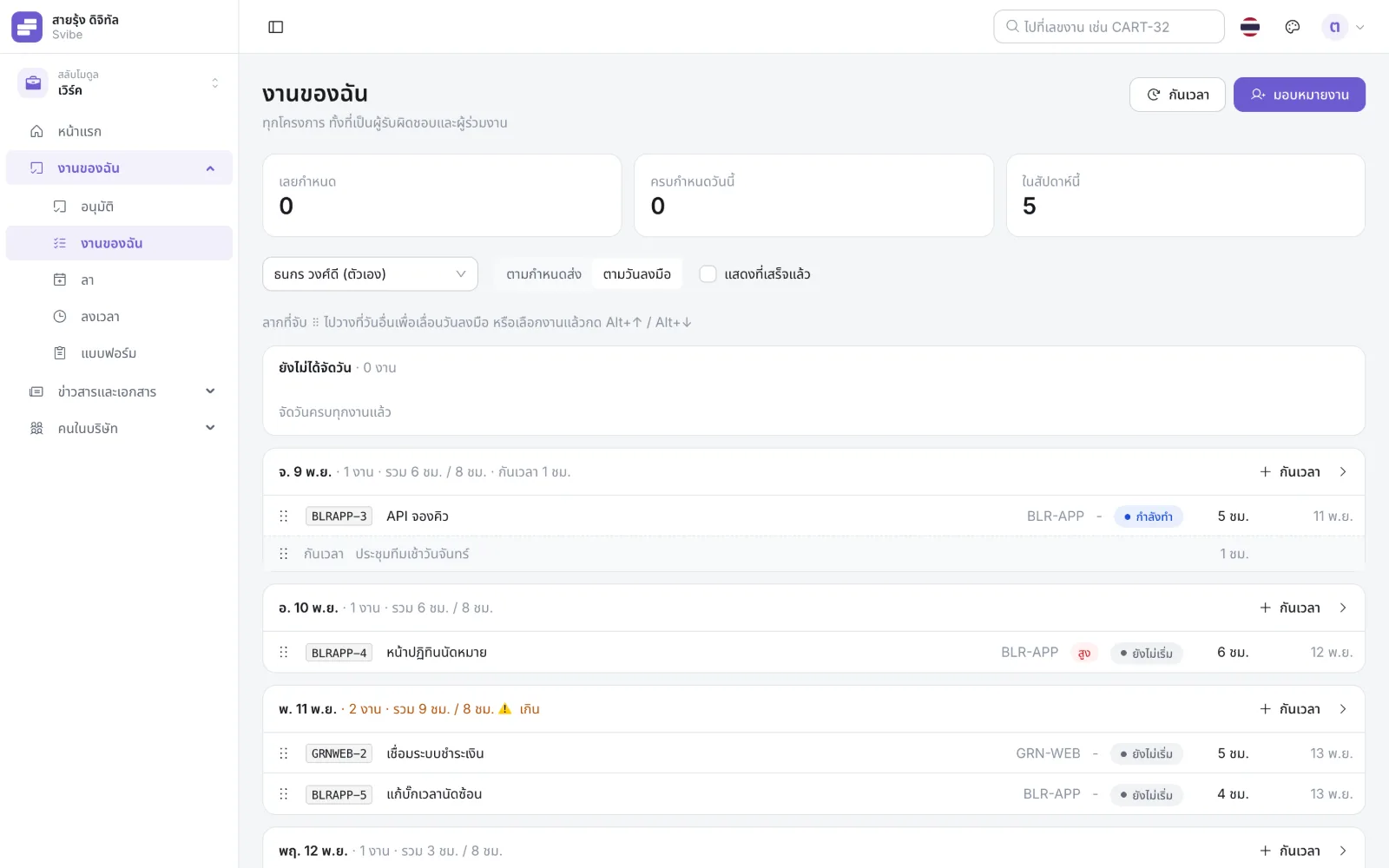
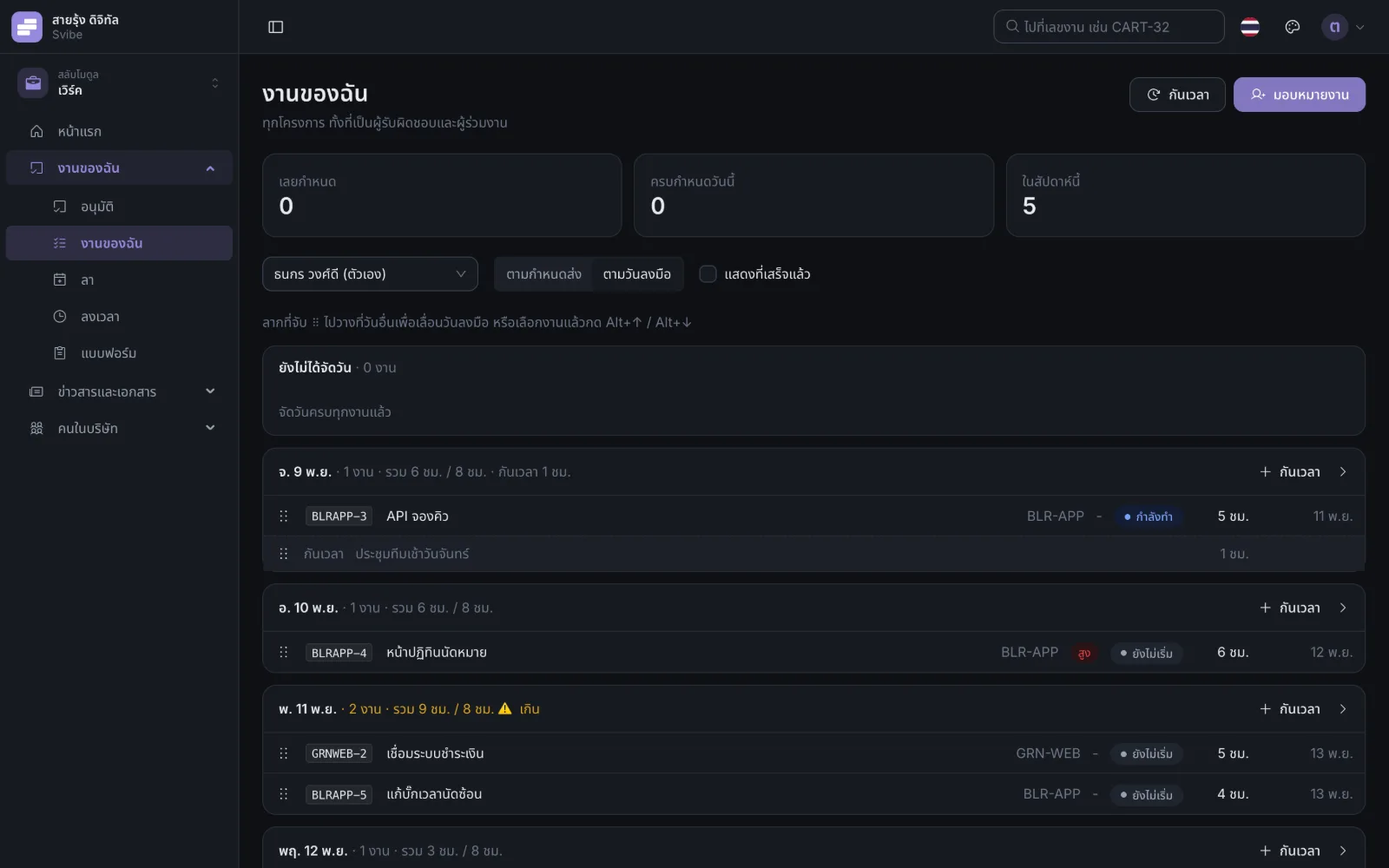
Every task you own, from every project, in one list — no opening projects one by one.
- Grouped by the day you plan to do it; each day shows how many tasks and how many hours against the time you have
- Drag tasks between days to even them out, or use Alt + ↑ ↓
- Time set aside for meetings shows up in that day’s plan
- Click a day to log its time straight away
Log hours by dragging, not by doing sums
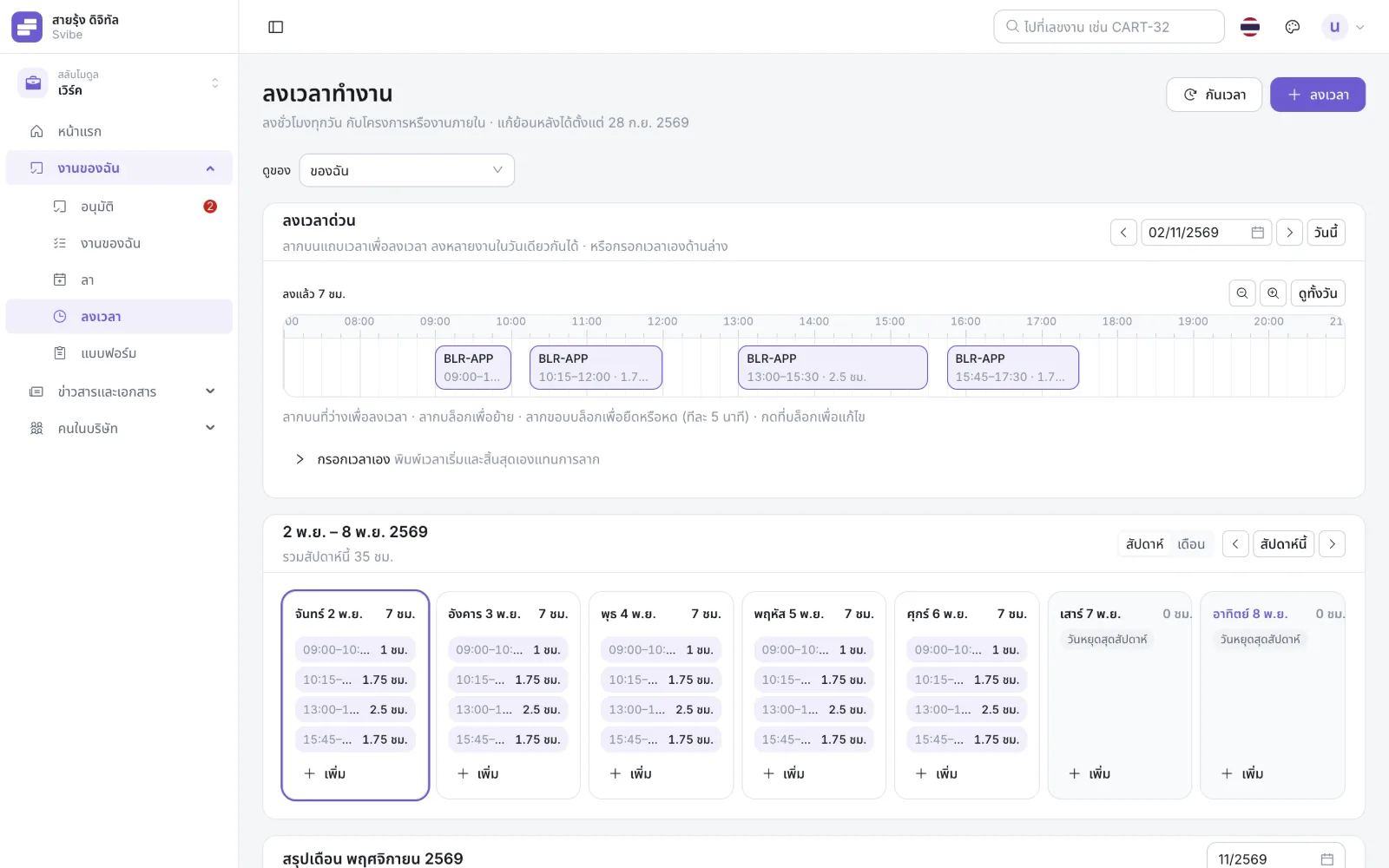
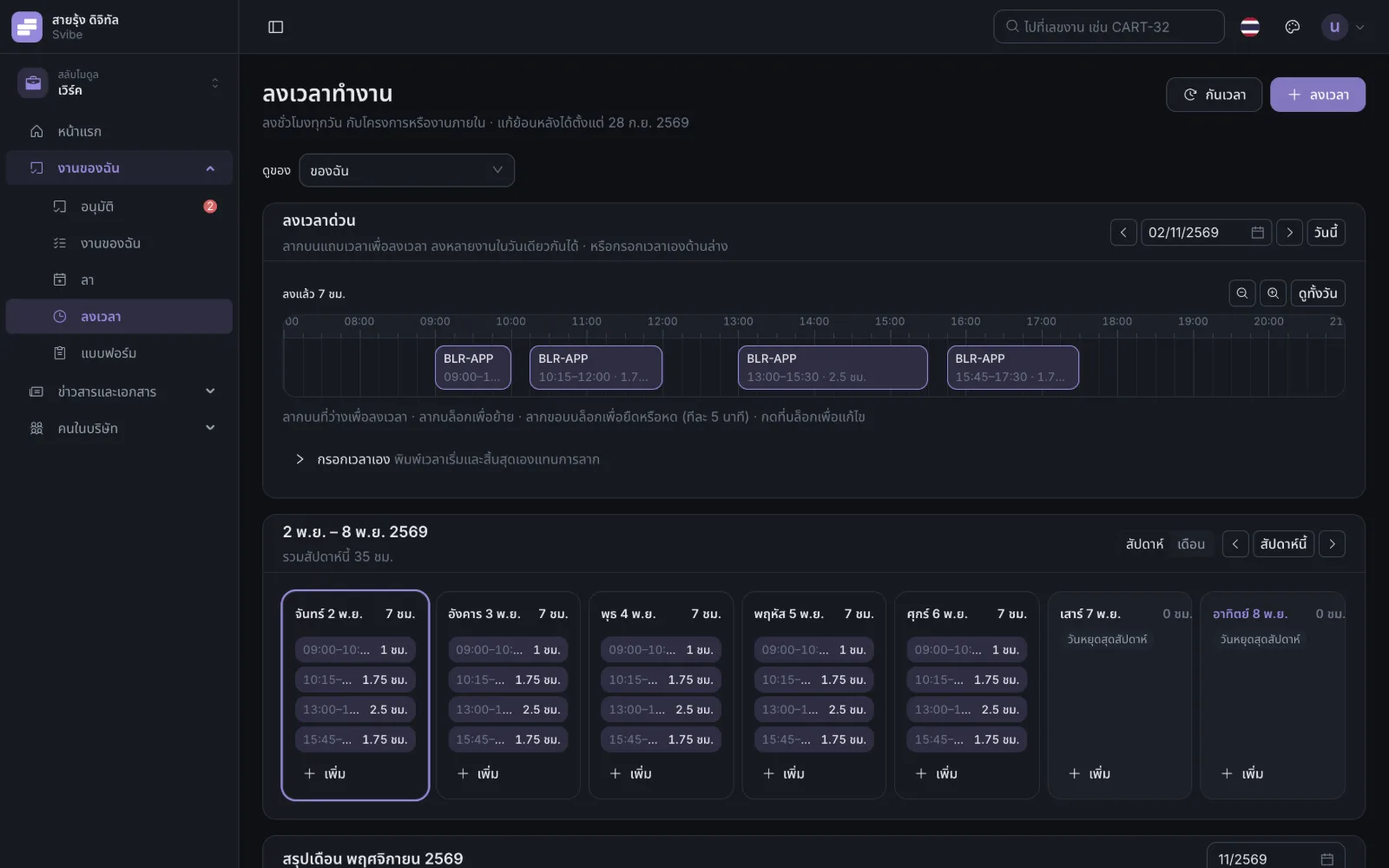
The day is a strip like a calendar. Drag to say what you did when; Svibe works out the hours.
- Drag to create, move or stretch a block in 5-minute steps; blocks can never overlap
- Planned work shows as faint blocks — drag one down and it becomes logged time
- Week and month views; entries in the month view open on click
- Prefer typing? Enter start and end times yourself
- An FTE summary shows project managers who logged what to which project
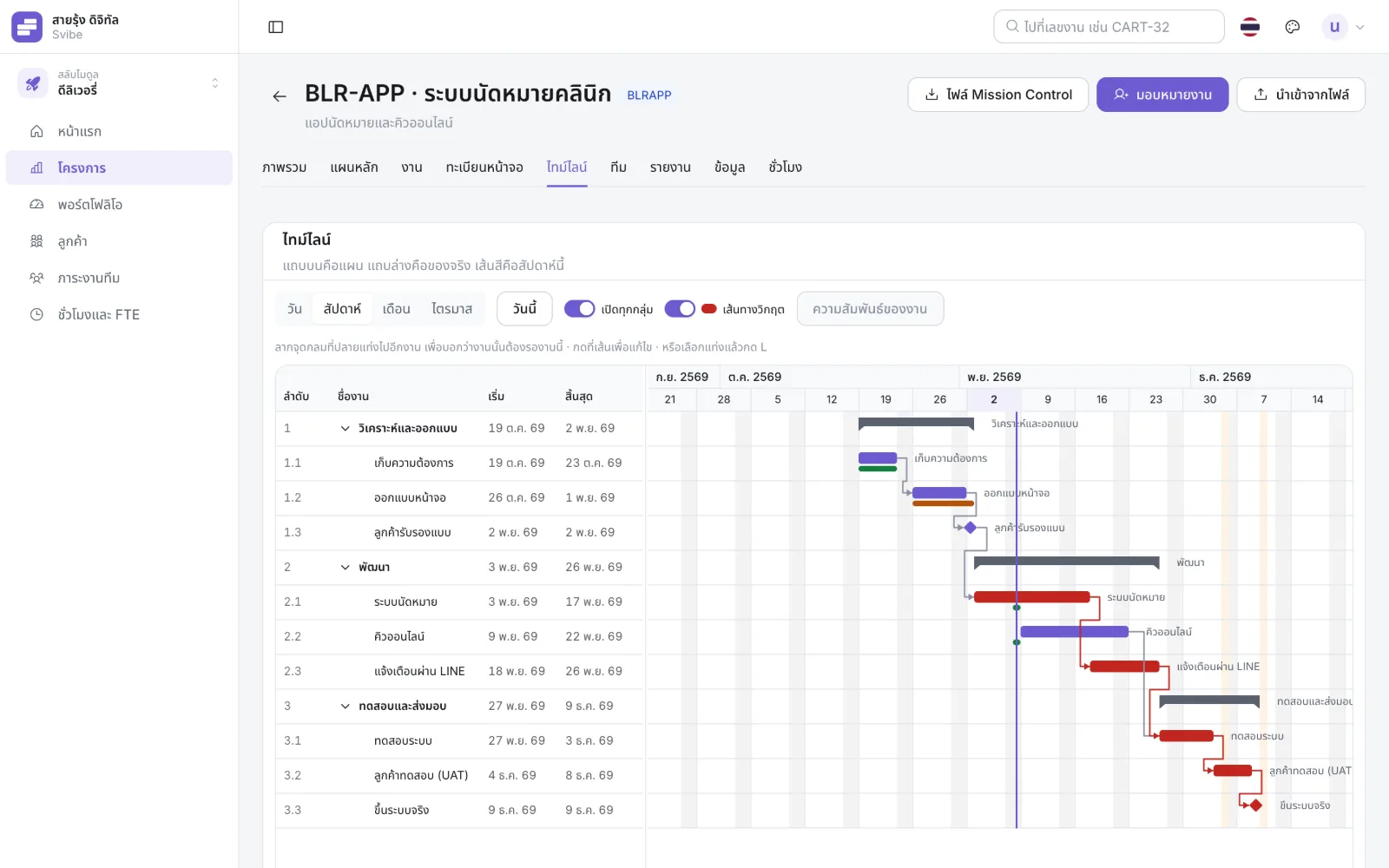
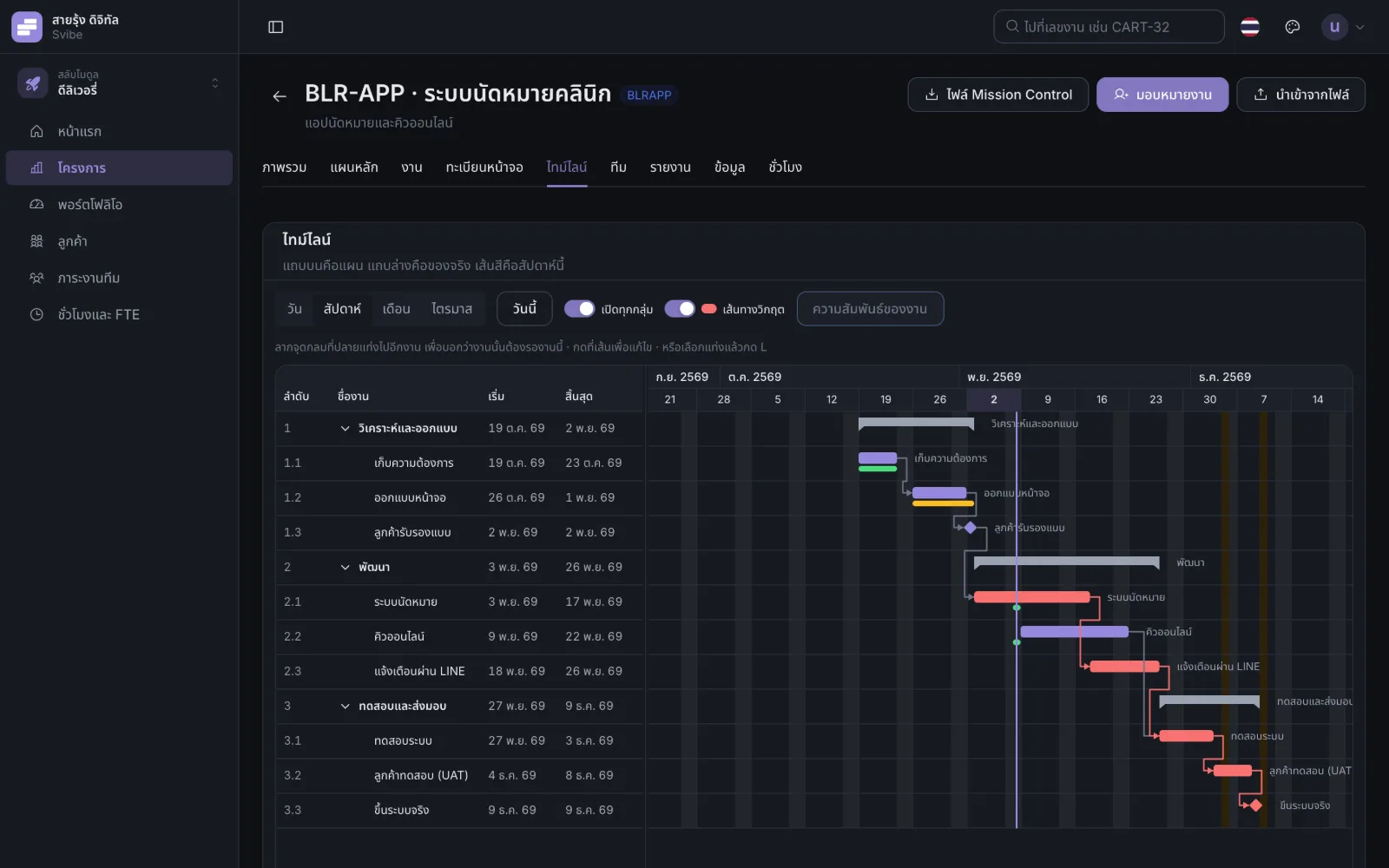
Plan as a tree, see it as a Gantt
Break big work into smaller pieces as deep as you need; numbering is automatic, and the whole project sits on one timeline.
- A work breakdown tree with groups, tasks and milestones, owners and contract references
- New Drag links between tasks that wait for each other; waiting tasks move by themselves and the critical path turns red
- Zoom from days to quarters; drag and stretch bars
- Boards, comments, sprints, weekly status reports, risks and issues, budget, and a portfolio view
- Import an existing plan from a spreadsheet
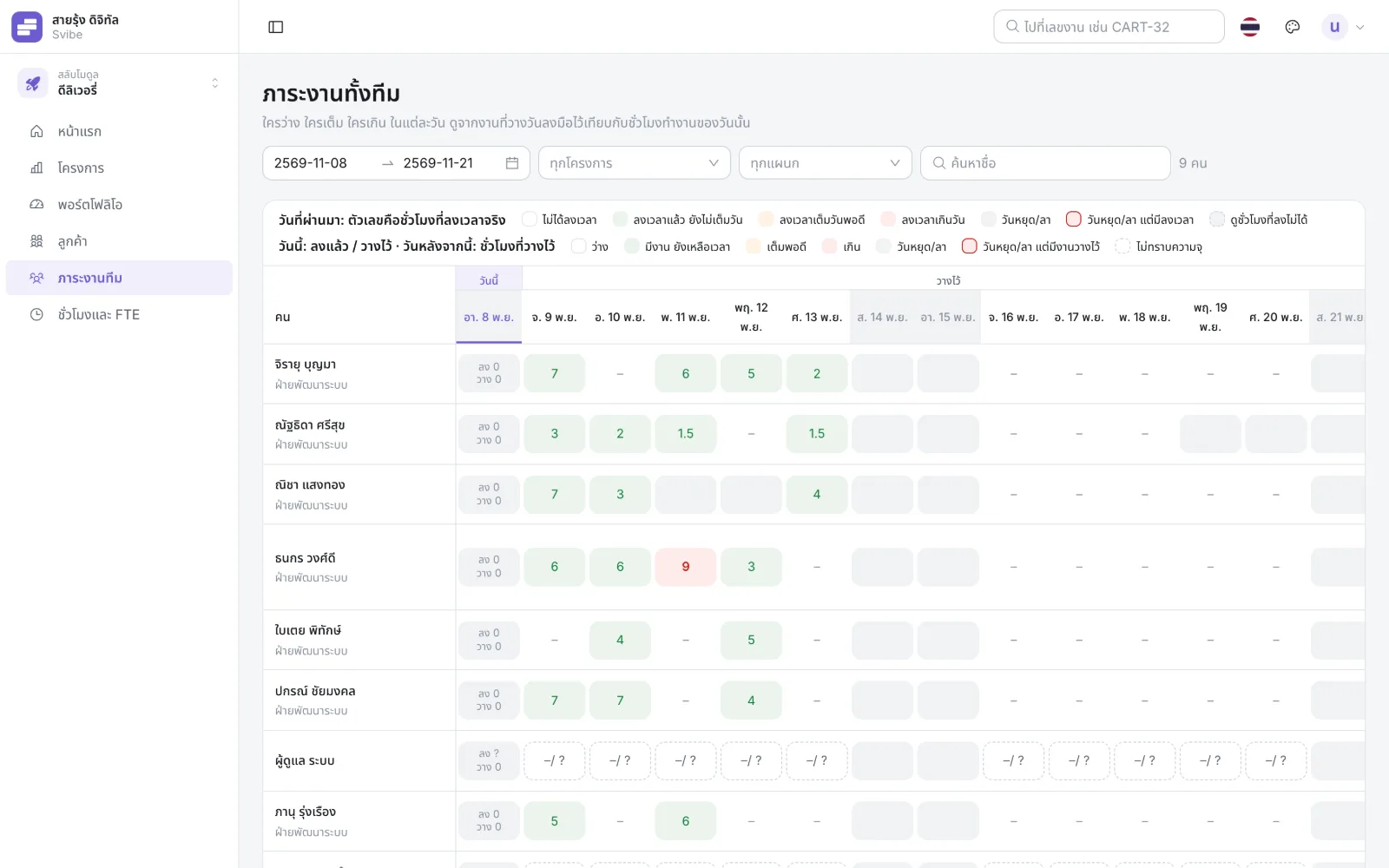
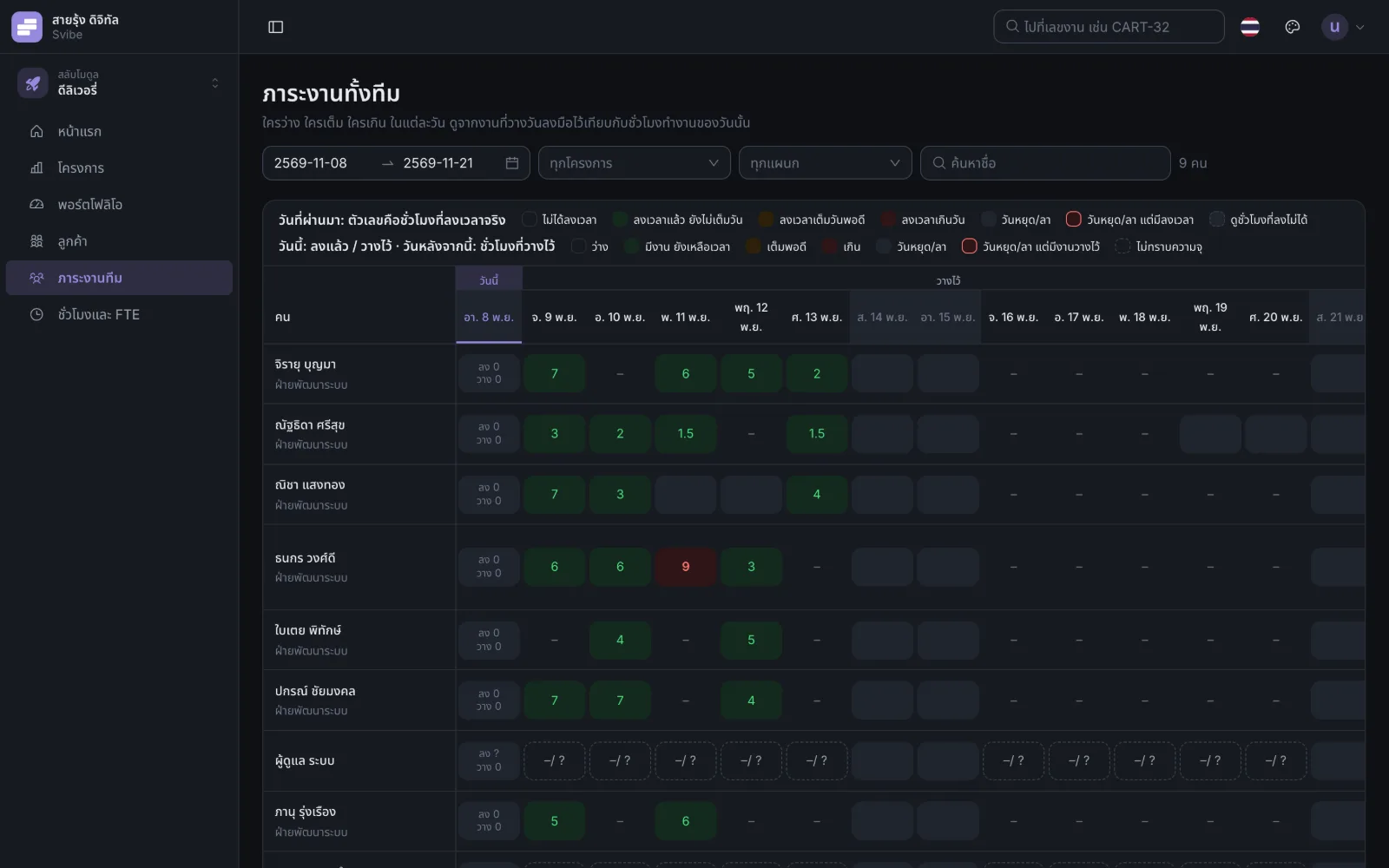
Know whose day is full before you hand out work
No more guessing from a spreadsheet. Every task has an estimate and a planned day, and Svibe adds them up for the whole team.
- A team grid — people in rows, days in columns — showing who is free, full or over
- Assigning work to a full day warns you at once, counting working days, company holidays and approved leave
- Set time aside for meetings or preparation so it counts in that day — on the web and on the phone
- Past days show hours logged, future days hours planned, with estimate vs actual per person and per project
- Leads can open a team member’s daily plan to help arrange the day
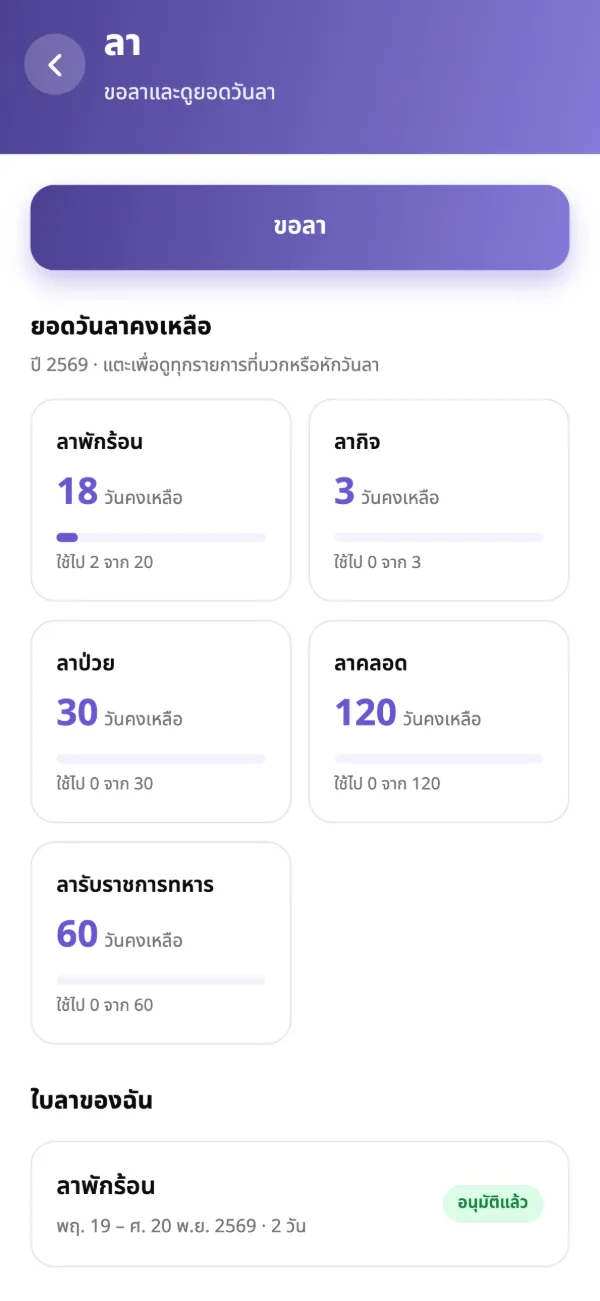
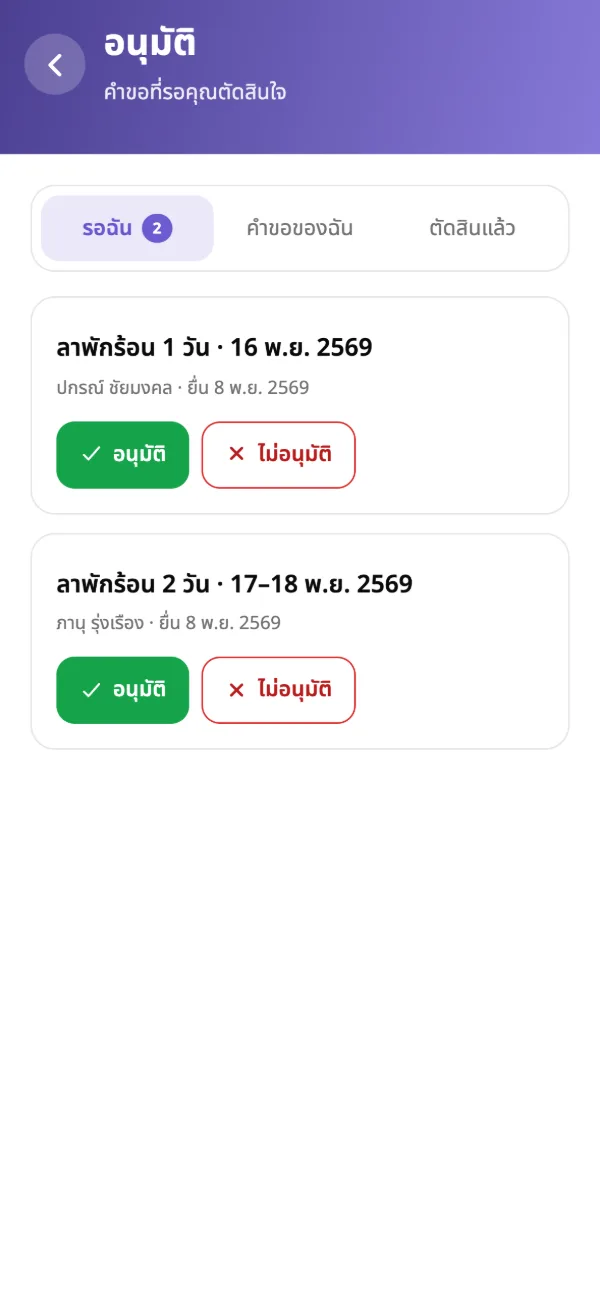
Ask for leave in a few taps, approve it the moment you see it
No more messaging your manager and waiting: a request goes to whoever must approve it, in the order your company set.
- Remaining days for each leave type — and only the types you can use
- Attach a medical certificate; cancel with a reason
- Approvers see who else in the team is off that day before approving
- The same approval steps work for other requests too
- A team leave calendar with today clearly marked
Money and everyday things, in your hand
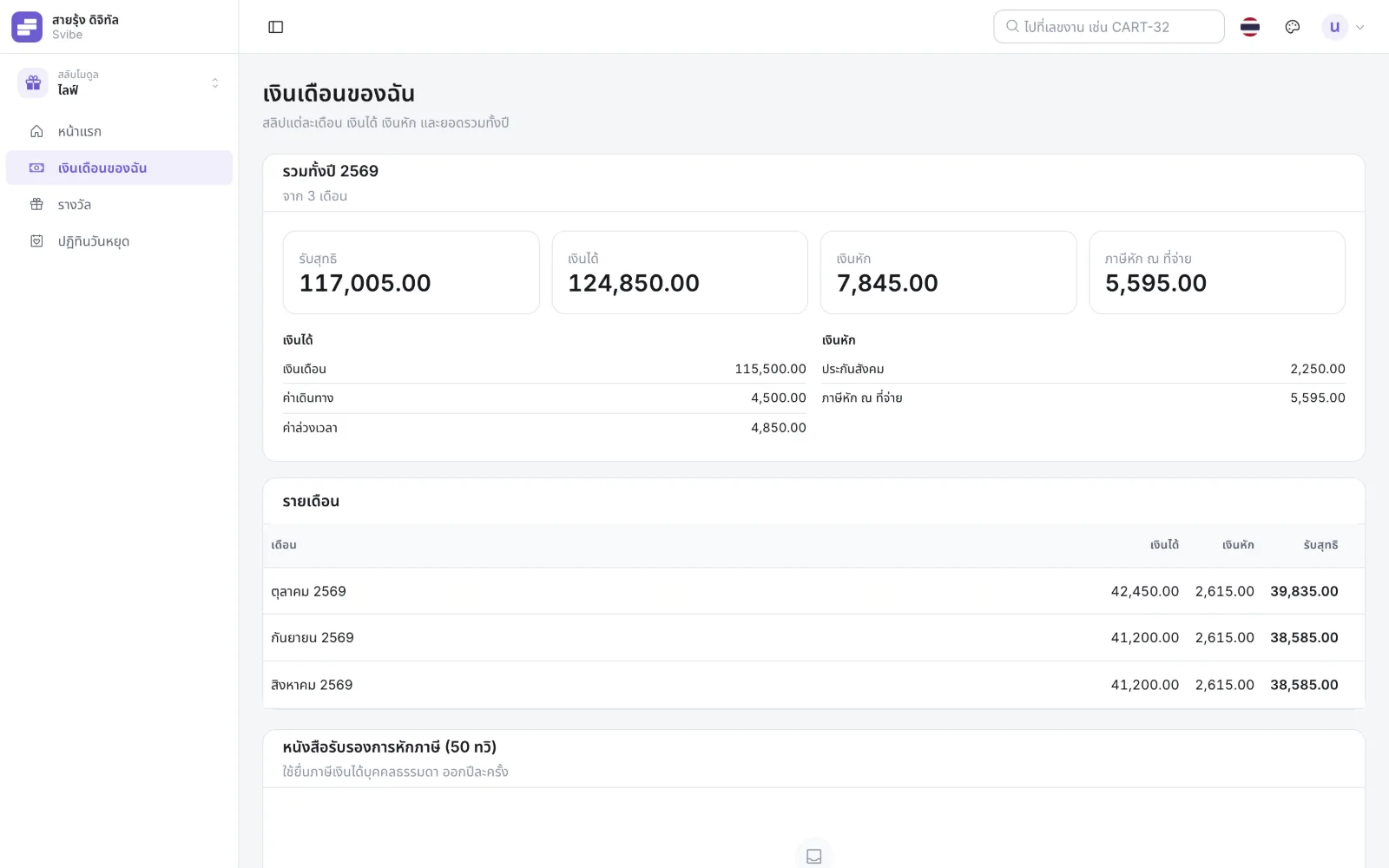
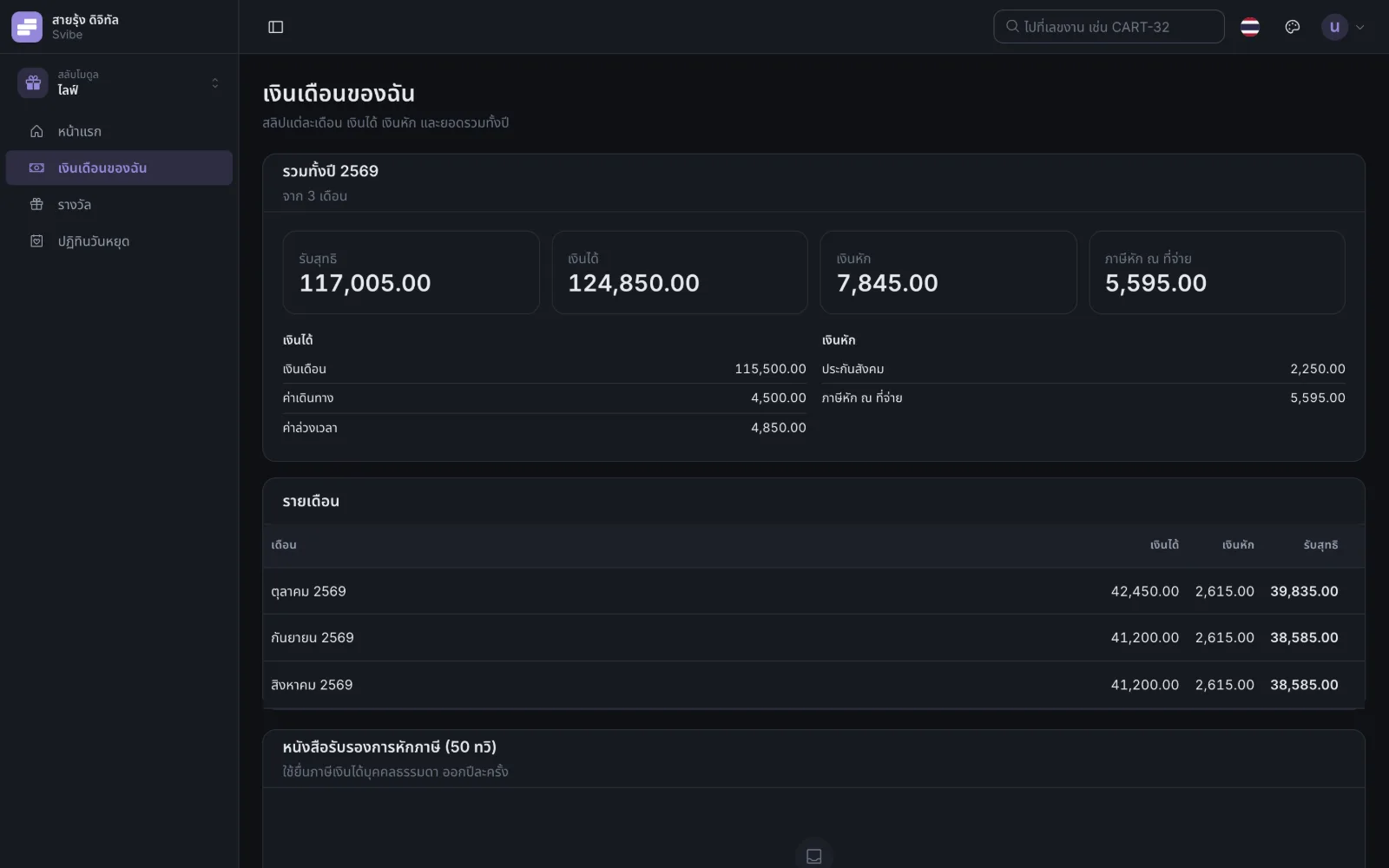
No more waiting for a payslip email. Open any month yourself, as far back as you need.
- Payslips with earnings and deductions, history, and the year’s totals
- Withholding tax certificates (50 Tawi)
- Rewards you have received, with a notification the moment one arrives
- The company holiday calendar, which you can add to your phone’s calendar
- After leaving, you can still open your own payslips and tax certificates for 6 months with a personal email
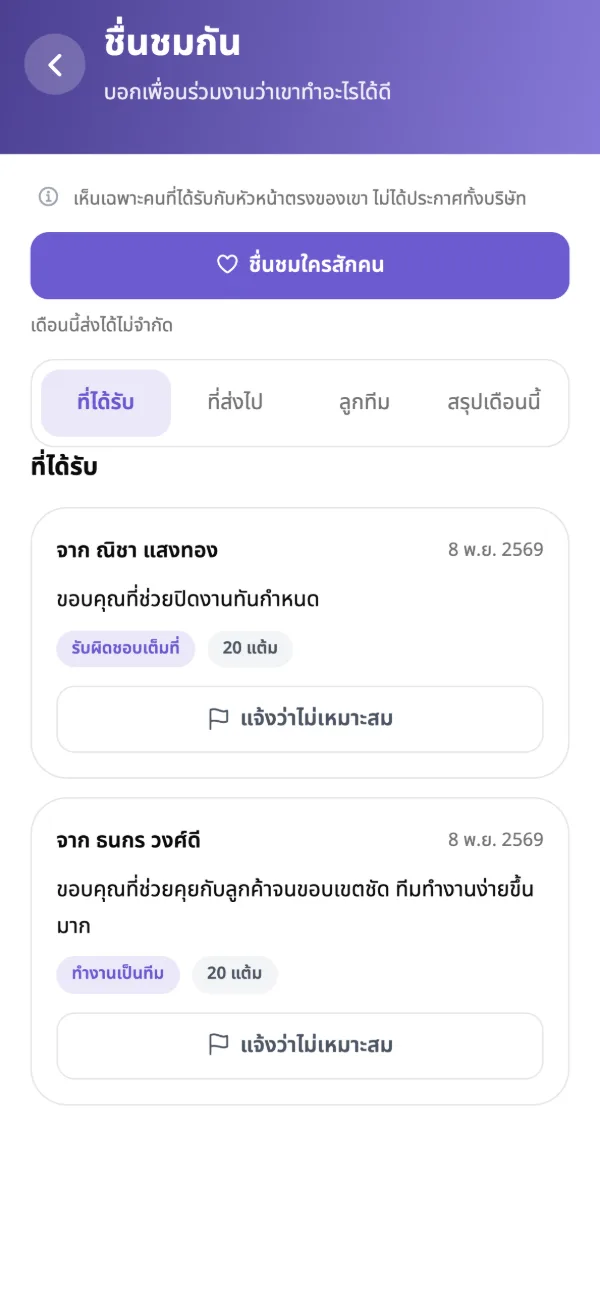
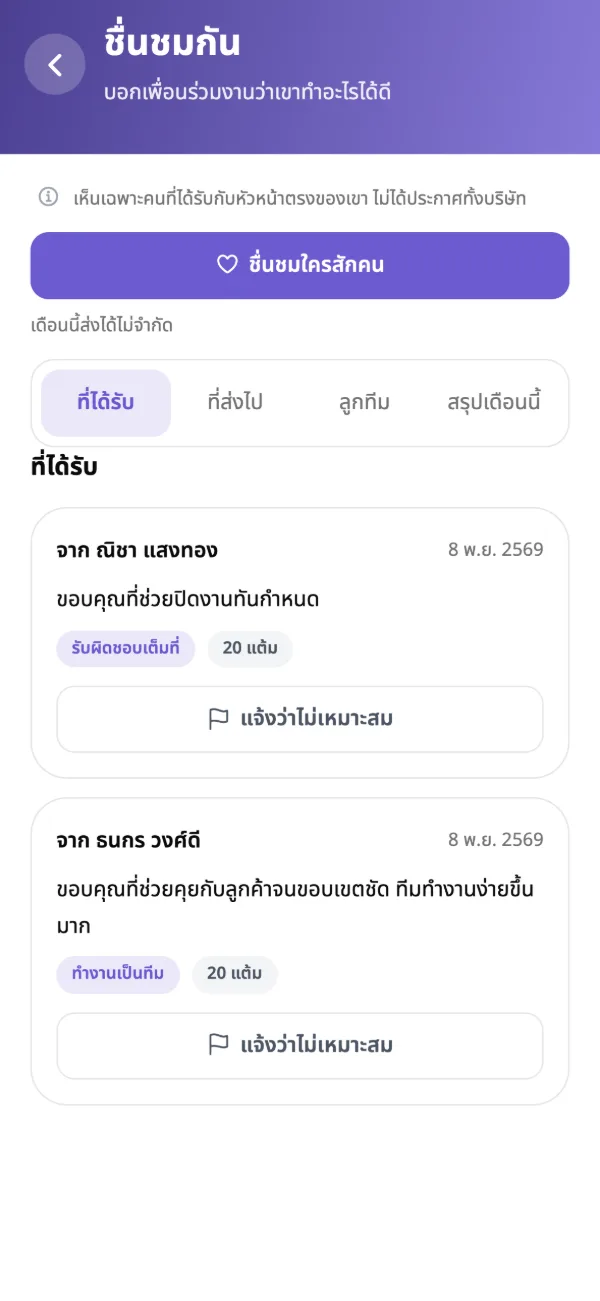
Saying thanks is easy, and it earns points
The small things that make a team want to come to work have a place in the system.
- Thank a colleague against your company’s values, named or anonymous — each button shows what it is worth
- Earn points for what you do and trade them for rewards
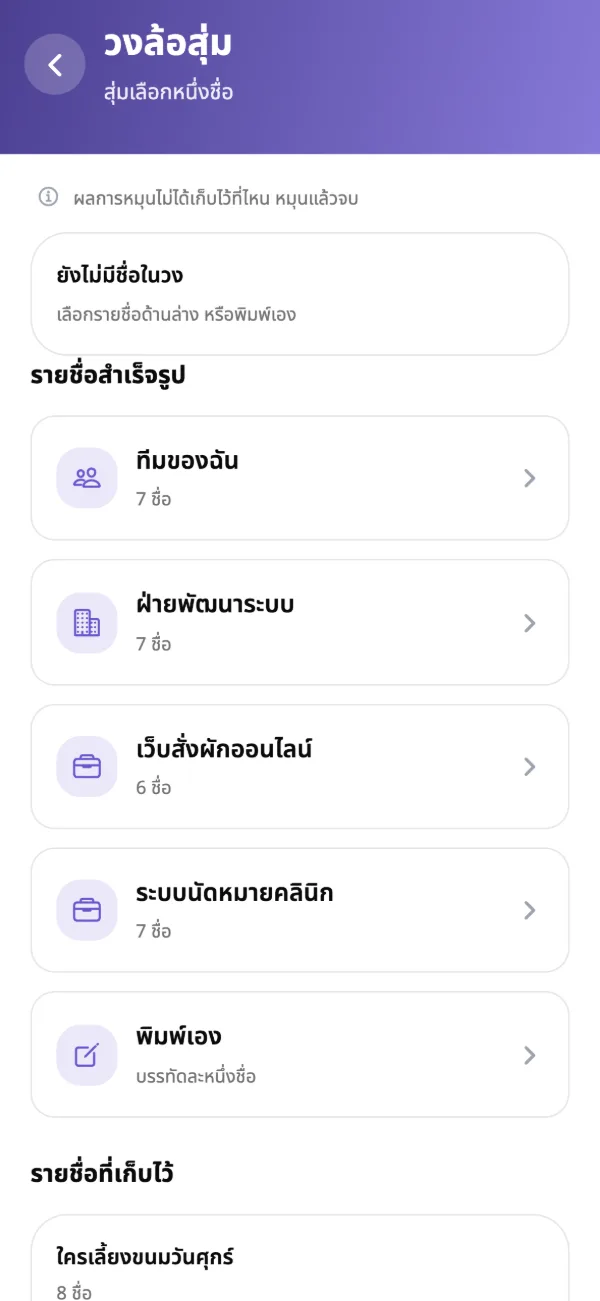
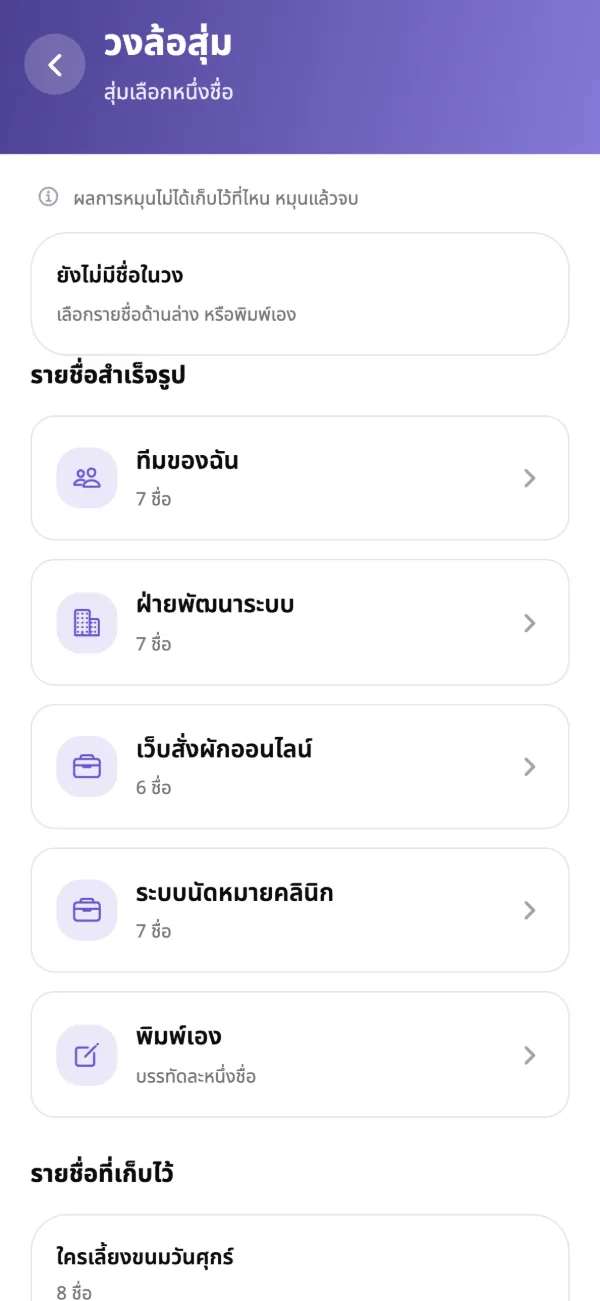
- A prize wheel that picks from a team, department, project or a typed list — works offline
- Live quizzes the whole room plays at once, with a leaderboard
A reminder before your free parking runs out
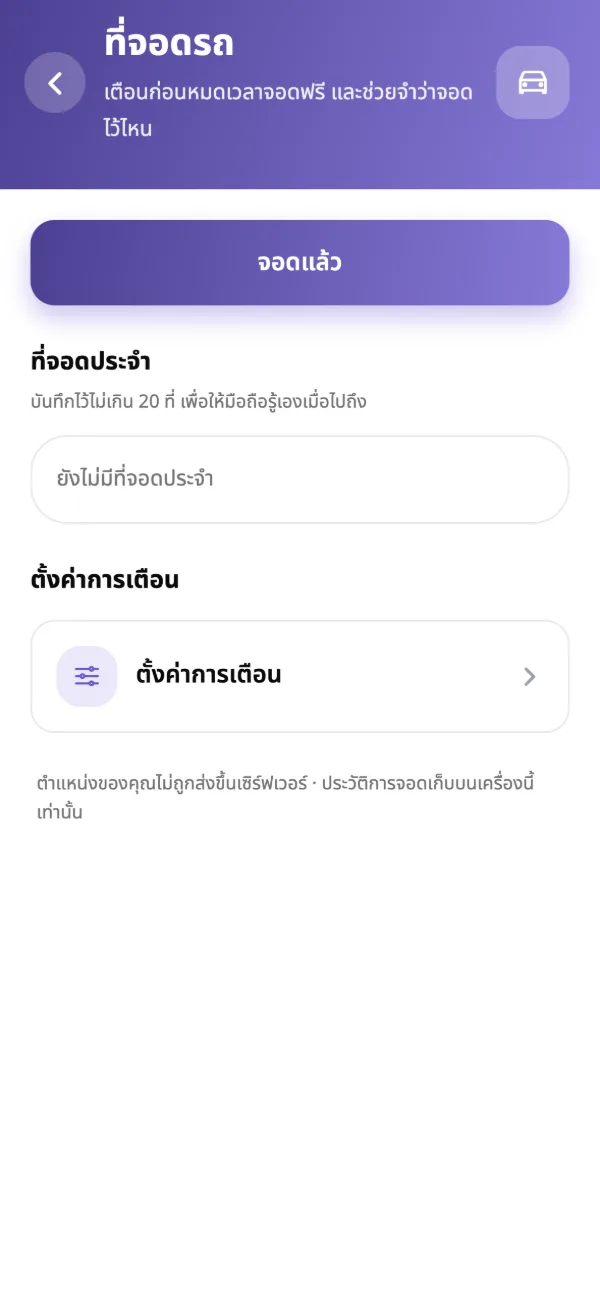
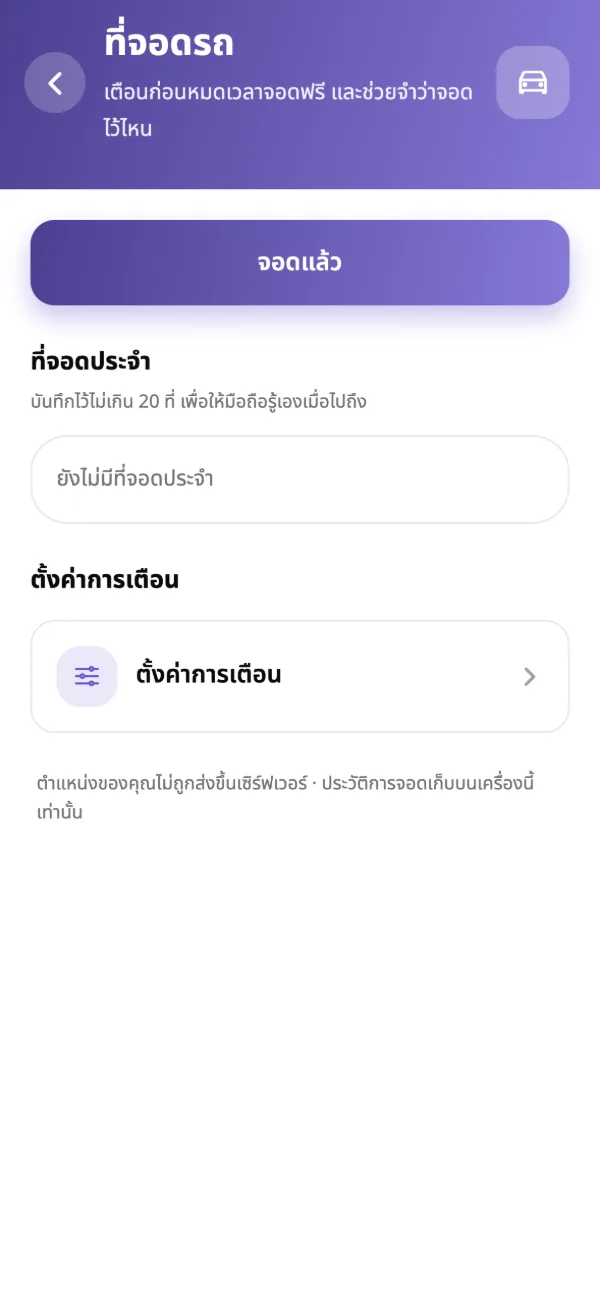
Tap “Parked” and the app remembers where and since when, and reminds you before free parking ends.
- Fix the ticket time if you saved it after the barrier
- After the stamp, enter the free-parking end time from your receipt
- Your last 50 parking visits
- Where you park, your usual spot and your history stay on your phone only
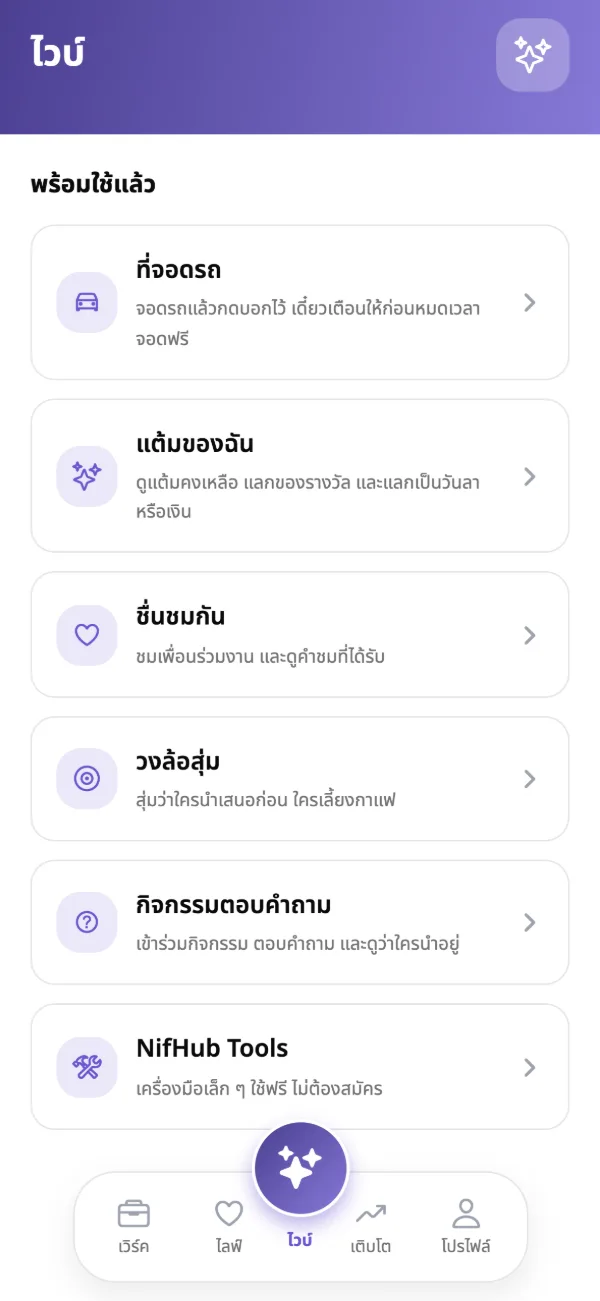
Small tools you reach for often, in one menu
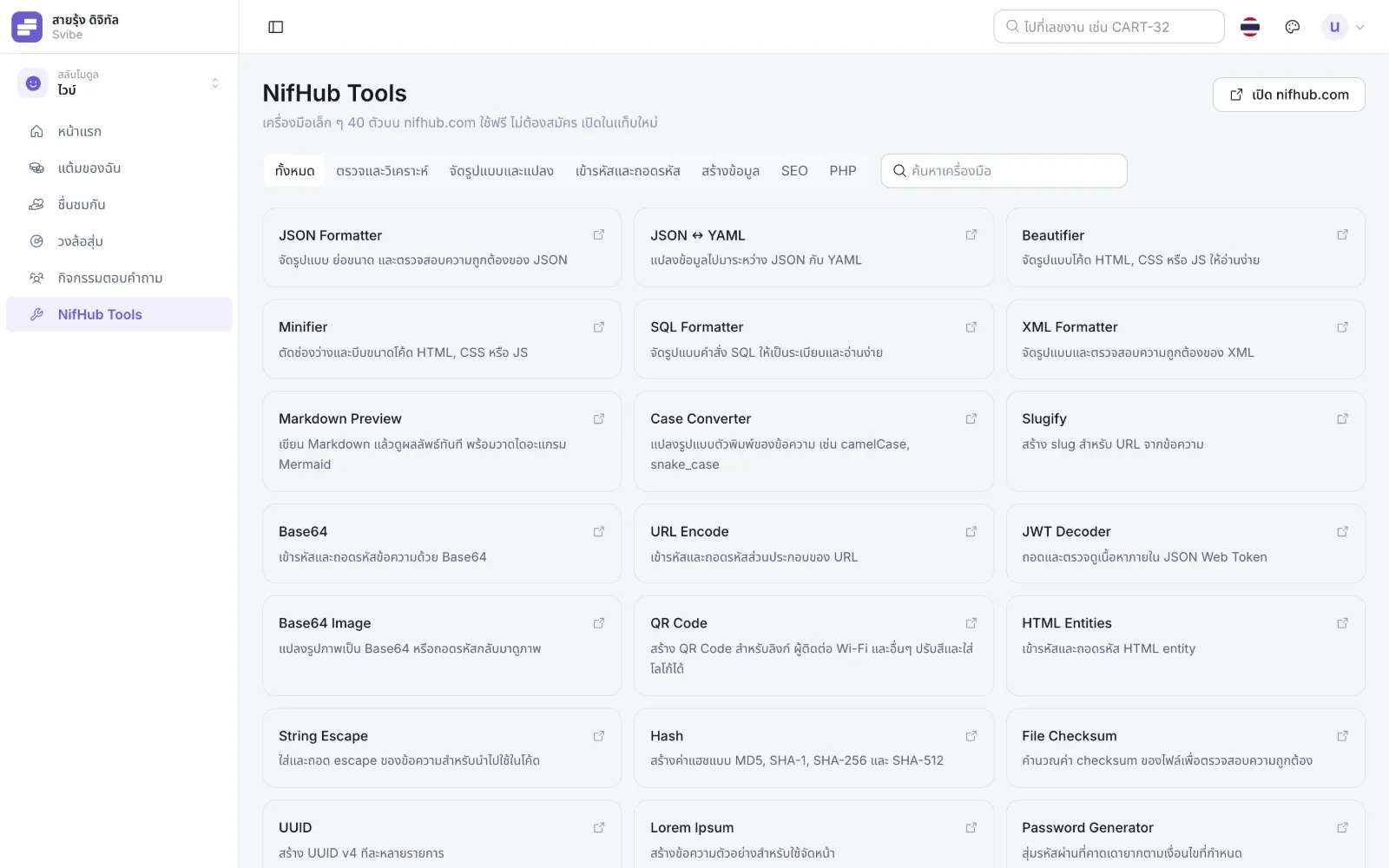
Shortcuts to 40 tools on nifhub.com, a sister product — free, no sign-up.
- Format JSON, SQL and XML, convert text, encode and decode, make QR codes and more
- Search and filter by category
- The same list on the web and on the phone
Know what is expected of you, and how far you have come
Goals, learning and reviews in one place — no digging for evidence when review time comes.
- Set goals for the cycle and check in along the way
- See what your position expects
- Take company courses with an end-of-lesson quiz, kept as your training record
- Give and receive feedback any time
- Assess yourself before the review and read the summary once the cycle closes
Quality forms, filled in and signed on screen
Your company’s ISO 9001 forms live in Svibe: filled in step by step and kept as registers auditors can open.
- The forms your company really uses, with codes and revisions
- Assign who fills which step; it passes on by itself
- Sign on screen, on the web and on the phone
- Registers as PDF, and access for auditors
- Company standard documents, readable on any device
From a conversation to a real project
Client details live next to the work. Win the deal and open it as a project straight away.
- Track leads and their contacts
- A client register with client-code approval
- One client form for management and delivery alike
- Turn a lead into a project in one step
Announcements that know who has read them
Everyone sees the same news from the moment they open the app.
- Announcements people acknowledge, and a view of who has
- Company news and standard documents, readable on the device
- Org chart and a directory with contact numbers
- Company details and holidays
- Send feedback to the Svibe team from the web or the phone (shake the phone to report a problem)
Set up your company yourself — no programmer needed
The settings screens use HR’s own words. If they don’t make sense to you, we designed them wrong.
- Employee register, departments, positions and the org chart
- Leave types, quotas and company holidays
- Approval steps: which request goes to whom
- Payroll import from PEAK
- Your company’s brand colour, and who sees what
- One account for several companies, each company’s data kept apart
Try it on your phone
Download the app and sign in with the email your company registered for you.